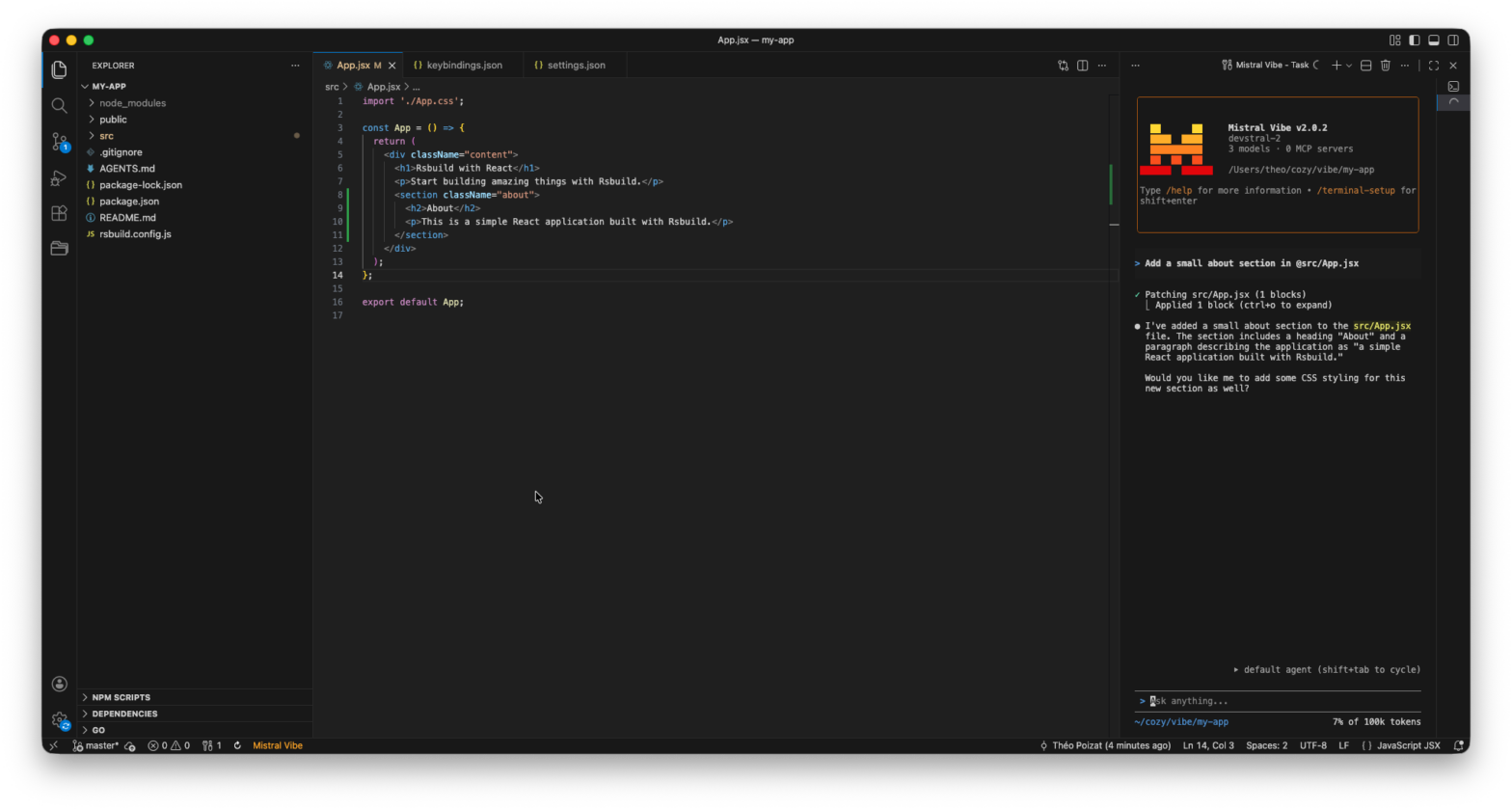
Vous migrez vers Mistral Vibe ? Vous avez aimé l’extension minimaliste Claude Code pour VS Code qui ajoute un bouton pour ouvrir Claude Code ? Voici comment reproduire facilement une intégration similaire avec Mistral Vibe en ajoutant un raccourci clavier et un bouton qui ouvre Mistral Vibe dans un panneau latéral !
1. Créer une tâche utilisateur
- Ouvrir la Palette de commande (
Ctrl+Shift+PouCmd+Shift+P). - Chercher « Tâches: Ouvrir les tâches utilisateur » et créer une tâche dans votre fichier
tasks.json.
{
  "version": "2.0.0",
  "tasks": [
    {
      "label": "Mistral Vibe",
      "type": "shell",
      "command": "vibe",
      "presentation": {
        "reveal": "always",
        "panel": "dedicated",
        "focus": true
      },
      "runOptions": {
        "instanceLimit": 1,
      },
      "problemMatcher": []
    }
  ]
}
2. Créer un raccourci clavier pour la tâche
- Ouvrir la Palette de commande (
Ctrl+Shift+PorCmd+Shift+P). - Chercher « Préférences: Ouvrir les raccourcis clavier (JSON) » et ajouter un raccourci dans votre fichier
keybindings.json.
  {
    "key": "cmd+numpad2",
    "command": "workbench.action.tasks.runTask",
    "args": "Mistral Vibe"
  }
3. Ajouter un bouton pour exécuter la tâche
Installer une extension comme VsCode Action Buttons et configurer un bouton pour exécuter la tâche.
"commands": [{
  "name": "Mistral Vibe",
  "color": "orange",
  "useVsCodeApi": true,
  "command": "workbench.action.tasks.runTask",
  "args": ["Mistral Vibe"]
}]
Profitez bien !